
If your login screen looks similar to the image below or you are getting messages on your computer saying that your password has expired or is no longer working, follow these steps to reset your password.
First make sure that your computer is on the lock screen by pressing Windows Key + L at the same time. Next click on the spacebar or click to bring up the sign in windows. Put in your credentials and hit enter. You should see a message similar to below.
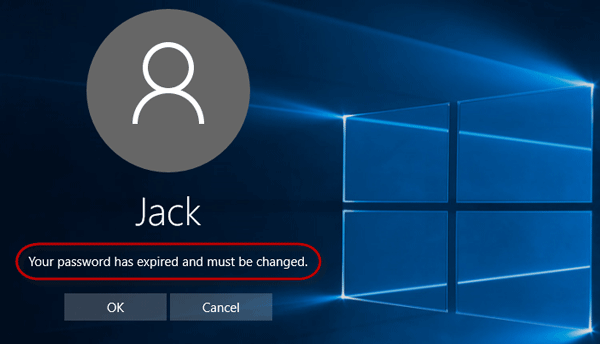
Click on the "OK" button then on the next screen three boxes should show up. Type in your old password in the top box, then your new password in the bottom two boxes. Once you have done this hit enter and that will take you back to the login screen where you will login now with your new password. The new password will reset again after 90 days and you will not be able to use the same password as your three most recent ones.
Note: Once your password has been changed you will need to reenter it on any iPhone/iPad that is logged in to your email as well as use this new password when logging in to https://mymail.mywinterhaven.com and netmotion. A pop-up should automatically appear on any iPhone/iPad asking for the new password once it has been changed.
Comments
0 comments
Please sign in to leave a comment.