
Error 1003
When opening Stromberg are you receiving an Error1003 and a screen similar to the screenshot below?
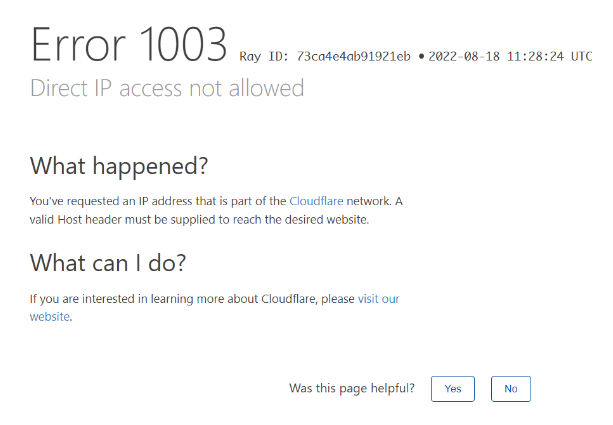
We have a few troubleshooting steps that you can follow in order to try and resolve this issue. This error normally occurs when trying to access Stromberg while the device you are using is not connected to the City's network. If you are connecting from a laptop or desktop with Netmotion make sure that either the ethernet cable is fully plugged in or you are connected to Wi-Fi and then make sure that you have Netmotion turned on and it is showing a green mark on the icon. If you are using a desktop computer without Netmotion make sure that you are connected through ethernet and not to the Wi-Fi instead. Look at the icons in the bottom left corner of your screen beside the time and you should see a symbol similar to the one pictured below.
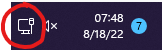
If you see this icon that look like a monitor with a cable beside it that means that you are connected through ethernet, if there is a Wi-Fi symbol that means that you are connected to the internet through Wi-Fi which will not be on the City's network. Go into the settings app by pressing Windows Key and searching for "settings" without the quotation marks. Once opened, go to the "Network & internet" option and toggle the Wi-Fi switch to off. After a few minutes your icon should switch to the one pictured above. If not, reach out to our support staff through a ticket on Zendesk and we will check out your connection to make sure everything is setup properly.
Screen Just Flashes When Clocking In and Doesn't Register Punch
If you are attempting to clock in or out on the eKiosk and the screen just flashes and does not input your punch into your timecard try these troubleshooting steps. Firstly identify which browser is opening when clicking on the Stromberg link. If it opens in Chrome you will need to change it to Edge (with the Stromberg fix applied) as Stromberg does not work on Chrome and is normally the cause for this specific issue. To get the right shortcut open up Windows Explorer by pressing Windows Key + E at the same time and in the path box at the top of the window beside the search box, enter in the path "\\howard\software\HelpfulShortcuts\Stromberg Shortcuts" without the quotation marks. It should take you to a page similar to the one below.
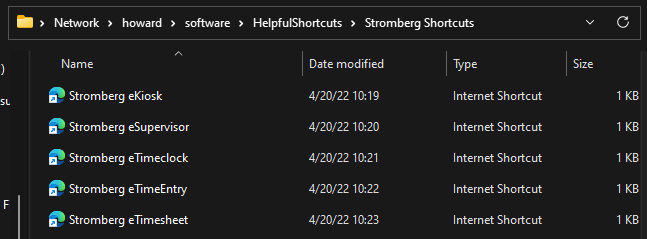
Find you shortcut that you use and copy it onto your desktop by clicking on the link you want pressing Ctrl + C then clicking on an empty space on your desktop and pressing Ctrl + V. Make sure to delete the old Stromberg Shortcut to ensure there is no confusion as to which shortcut you should be using. Click on the new shortcut and ensure that there is an Internet Explorer icon on the top left of the screen (example below).
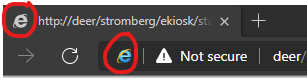
If you do not see these icons please reach out to our support staff via Zendesk ticket and ask for the Stromberg Edge patch to be applied to your computer.
If you do see the icon there then you are all set and Stromberg should be working now when you try and make a punch. If it still is not working please reach out to our support staff via Zendesk ticket and we will get to you as soon as we can.
Comments
0 comments
Please sign in to leave a comment.